

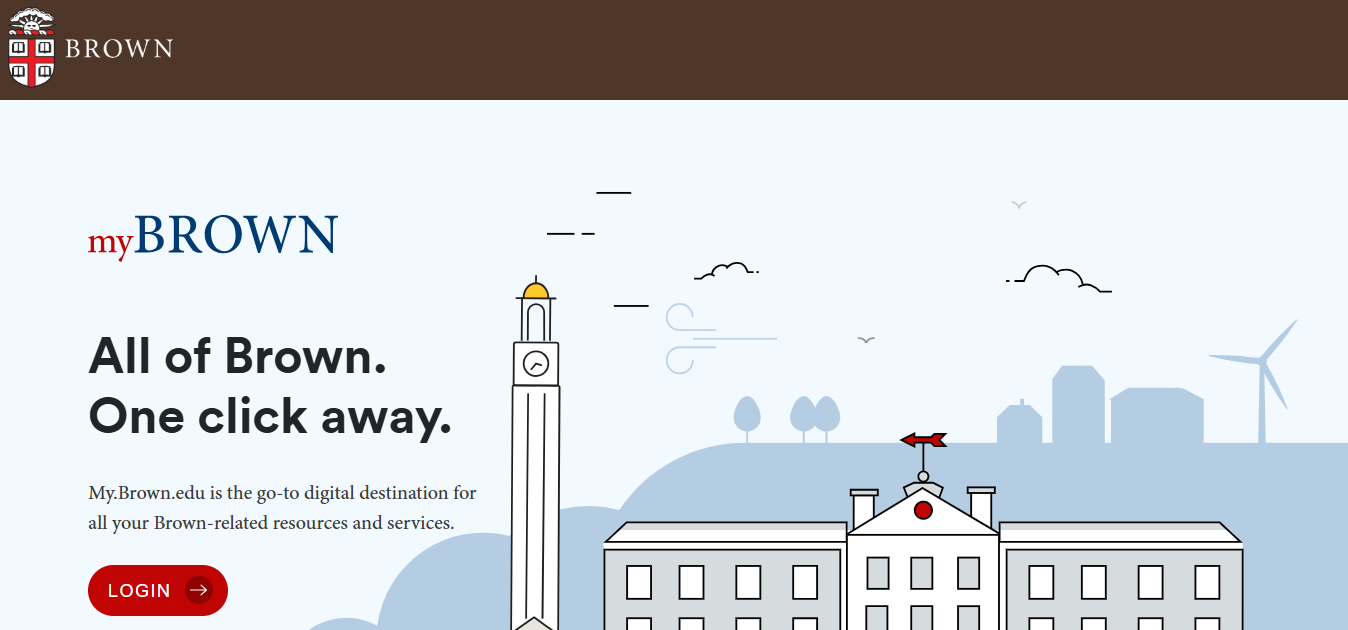
The myBrown portal is Brown University’s secure online gateway, designed to provide students, faculty, staff, and alumni with centralized access to academic, financial, and community resources. It acts as a personalized dashboard where users can manage their university accounts, access records, and stay connected with campus services. With features like academic records, financial tools, and email access, the portal ensures that essential information is available in one convenient location.
Beyond academics, the portal extends to alumni networking, career tools, library resources, and event updates. Security is reinforced through two‑step verification, ensuring safe access to sensitive data. In essence, the myBrown portal reflects Brown University’s commitment to providing a seamless, user‑friendly digital environment that connects its community to vital resources and strengthens engagement across academics, administration, and alumni relations.
Key Features of myBrown Login Portal
The myBrown portal is Brown University’s personalized online hub, primarily designed for students, offering real-time access to academic, career, community, and volunteer resources. These are some of the key features of this portal are mentioned below:
- Academic Records: Access grades, transcripts, and course schedules.
- Financial Services: View tuition bills, financial aid, and scholarship details.
- Campus Resources: Connect to library services, campus safety updates, and student organizations.
- Email Access: Direct link to Brown’s email system.
- Events & News: Stay updated on campus happenings.
How to Access the myBrown Login Portal?
To access the myBrown login portal, candidates have to follow the simple steps below:
- Visit the official website at https://my.brown.edu/.
- Click on the “LOGIN” option.
- Enter the Username and Password.
- Click on the “Log In” option.
How to Reset the Password of the myBrown Login Portal?
In any case, if you forgot or lost the password for your myBrown login portal, follow these steps to reset your login credentials:
- Visit the official website at https://my.brown.edu/.
- Click on the “LOGIN” button.
- Right beside the Forgot Your Password section, select the “Faculty/Staff/Student” option.
- Enter your Username and Brown ID in the given fields.
- Then, click on the “Next” button.
- After that, follow the on-screen instructions to reset your myBrown password.
How to Create the myBrown Account?
To create a myBrown account, you don’t manually register. It is automatically issued to eligible members of the Brown University community. You simply need to activate it through the myBrown portal. Follow these steps to activate the myBrown login portal:
- Visit the official website at https://my.brown.edu/.
- There, simply click on the “Activate Your Account Now” option.
- Enter your Last Name, Date of Birth, and Brown ID Number.
- After that, click on the “Continue” button.
- Then, follow the on-screen guidelines to activate the myBrown portal.
Reference Link
FAQs – myBrown Login
Ques: How do I create a myBrown account?
Ans: You don’t manually register for a myBrown account—it is automatically issued to eligible members of Brown University. New users must activate their credentials through the MyAccount portal at myaccount.brown.edu. During activation, you’ll set your username, create a secure password, and enable two‑step verification with Duo Security for safe access.
Ques: Is myBrown secure to use?
Ans: Yes, the portal is protected by two‑step verification using Duo Security, ensuring that only authorized users can access sensitive information. Brown University enforces strict security protocols, including session timeouts, password complexity requirements, and encrypted connections, making myBrown a safe platform for academic and administrative tasks.
Ques: Can alumni use the myBrown portal after graduation?
Ans: Yes, alumni retain access to the myBrown portal even after graduation. They can use features like the alumni directory, BrownConnect+, Rosetta Stone, and library resources. Alumni also receive a lifetime email address (@alumni.brown.edu) through the portal.